Overview
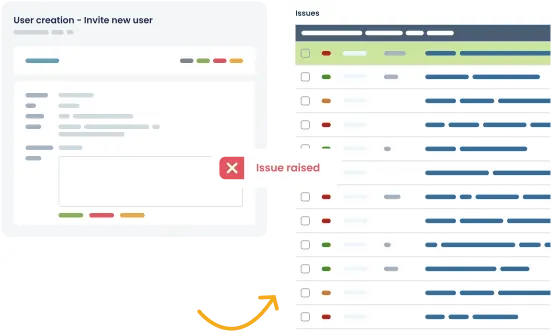
Our Axosoft test case management integration creates work items in Axosoft when a test fails, giving developers an up-to-date list of defects to fix.
How it works
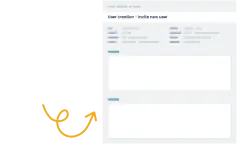
Simply enter your account URL and OAuth token in TestLodge to authenticate. Every time a test is marked as "failed", you have the option to create a work item in Axosoft so engineers have full visibility of the bugs logged by the testing team.
Key features
- Create a work item in Axosoft when a test fails.
- Assign a user to the issue.
- Add the work item to a specific release.
- Set the priority of the work item.
Setup instructions
- In Axosoft, generate a new OAuth token and copy your Axosoft account URL.
- In TestLodge, navigate to the project list and choose "issue trackers" from the side menu.
- Create a new integration for Axosoft and authenticate using your OAuth token and account URL.
- Go to a project dashboard in TestLodge and edit the project.
- Choose the Axosoft project where you want to create any raised issues.
Once you’ve completed the above steps, you can start executing tests. Failed tests will be created as a work item in Axosoft.
Frequently asked questions
Common questions around setting up the Axosoft and TestLodge integration.
Does it work on both the hosted and installed version of Axosoft?
Yes, our integration works with any Axosoft account type.
Which work item types does TestLodge create?
There are different work item types that a user can customize in Axosoft. To decide which item type TestLodge uses, we fetch the list of available items from the account and choose one based on this priority order: 'Bug (Issue),' 'Defects,' 'Defect,' 'Bugs,' 'Bug,' 'Issues,' and 'Issue.' Finally, if none of these match, we will use the first type in the list that Axosoft tells us is available.