

Overview
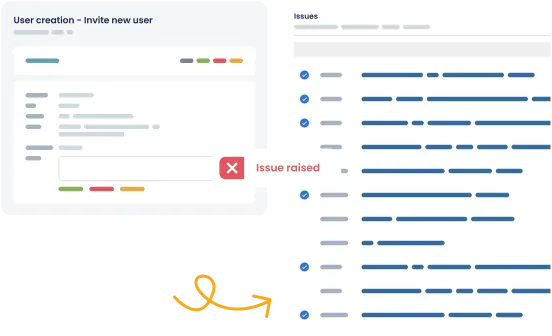
Testers and developers can work together more efficiently by using Azure DevOps and TestLodge. With our integration, whenever a test fails in TestLodge, a work item is automatically created in Azure, giving developers the information they need to resolve bugs quickly.
How it works
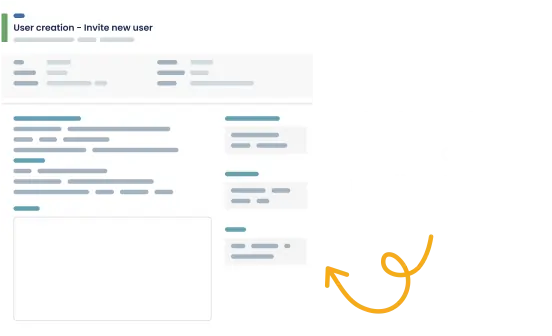
Follow the on-screen instructions to connect your Azure DevOps account with TestLodge. When a test is marked as "failed," TestLodge will automatically create a work item in Azure, including the test case details, so developers have all the information they need to resolve the bug as quickly as possible.
Key features
- Create a work item in Azure DevOps when a test fails.
- Assign a user to the work item directly from TestLodge.
Setup instructions
- Navigate to the project list in TestLodge and choose "issue trackers."
- Create a new integration for Azure DevOps and authenticate it by following the on-screen instructions that start with entering your URL.
- Click "Authenticate". You will be redirected to your Azure DevOps account to grant TestLodge access.
- Go to a project dashboard in TestLodge and edit the project.
- Choose the Azure DevOps project in which you want TestLodge to create work items.
Once you've completed the above steps, you can start executing tests.
Frequently asked questions
Common questions around setting up the Azure and TestLodge integration.
What type of work items does TestLodge create?
Azure allows users to customize work items. We fetch the list of work item types and use the first one from the following list: issue, bug, task.